Please see the Data Usage Policies and Restrictions page for any questions about how our data can be used.
A detailed TCIA user's guide can be obtained by clicking on TCIA Radiology Portal User’s Guide.
The TCIA Help Desk can be reached in one of two ways:
The hours of operation are 7:00 am to 5:00 pm CST, Monday-Friday. Although the Help Desk is closed weekends and holidays, a request can be submitted at any time. Holiday hours and further information may be found on our Support page.
The TCIA User's Guide should provide all the direction you need. Please contact TCIA’s Help Desk with additional questions by calling or texting +1 385-275-8242 (+1 385 ASK-TCIA) or sending an email to help@cancerimagingarchive.net.
Please contact TCIA’s Help Desk (+1 385-275-8242, voice or text ) or send us an email (help@cancerimagingarchive.net).
We welcome and appreciate your comments. Feedback maybe submitted via feedback@cancerimagingarchive.net.
A security warning prompt displays and asks "Do you want to view only the webpage content that was delivered securely". Answer NO to the prompt in order to see the captcha information that is used for verification.
If you answer YES, the captcha information will NOT display.
A bug in the software causes a sign in window to rarely and randomly appear when you access the website.
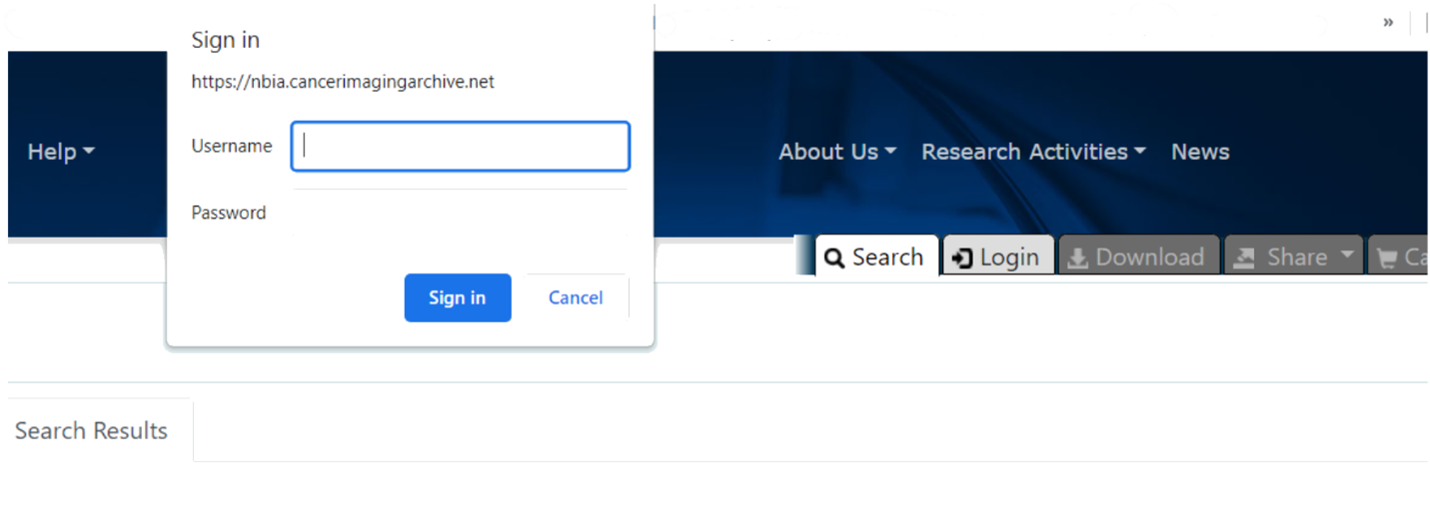
To resolve this issue until the bug is fixed, click Cancel on the Sign in window and proceed normally with using TCIA. If you do need to log in to visit a restricted collection, do not sign in on this window but rather click the Login tab to open the normal Login window.
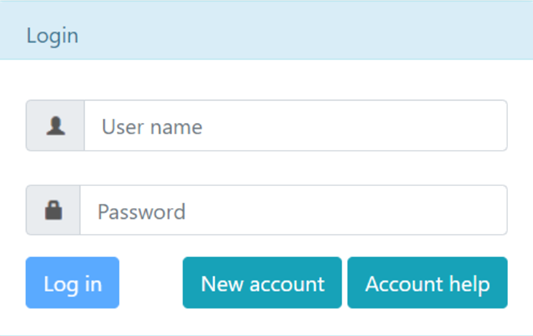
Not usually. Just search for images without entering login information.
Assuming you are using Internet Explorer, change your browser's language to English by following these steps:
1. From the menu bar, select Tools.
2. Select Internet Options.
3. Click on General > Language and set to English (US).
Remember that you do NOT need a user ID and password for most TCIA activities. Just search for images without entering login information.
Please contact the TCIA Support Center at help@cancerimagingarchive.net or call or text +1.385.275-8242 (+1.385.ASK-TCIA) during business hours for assistance.
You can find a list of all collections on the TCIA home page: https://www.cancerimagingarchive.net. The middle window on this page is labeled "TCIA Collections". It contains a list of all collections in TCIA. The orange "Search TCIA" button takes you to the TCIA search page. Typing anything into the "Filter table" input box will restrict the list of collections to those which match the pattern in the box. To access detailed information about a collection, click the link in the "Collection" column. This will take you to a page in the wiki with detailed information about the collection.
You can reference the corresponding wiki pages for any particular collection when you are logged into TCIA. From the search page, in the collection area, mouse over and click on the question mark symbol for information on each collection. If there is a wiki available for the collection, click it.
You can contact TCIA Support. Please indicate the name of the restricted collection. You may be directed to follow instructions at NIH-Controlled-Data-Access-Policy .
Please contact TCIA Help Desk (+1 385-275-8242, voice or text) or send an email (help@cancerimagingarchive.net) and indicate the name of the collection.
Yes, modality abbreviations are listed here.
Using MRI images of the prostate as an example, follow the steps below to download images from a specific collection:
Click the cart icon for one or more series. If you select only some of the series, the cart turns yellow. If you select all of the series, the cart turns green. The number of image series in your cart also appears next to the cart.
The cart itself, in the upper-right of the window, shows how many image series are in it and how large the download will be.

Click  .
.
A message appears reminding you to download the NBIA Data Retriever. If you have already downloaded it, click Do not show this message again and click . Otherwise, click  to go to a page with links for downloads for each operating system.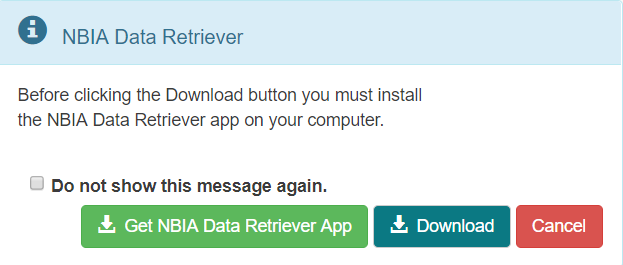
manifest-xxx.tcia file in the NBIA Data Retriever. For more information on the NBIA Data Retriever, see NBIA Data Retriever FAQ. Also see question #1 in the previous section.The National Biomedical Imaging Archive (NBIA) software enables searching for images in TCIA’s local in vivo image repository. For simple searches, see Performing a Simple Search. For text searches, see Performing a Text Search (these links are in the TCIA Radiology Portal User's Guide) for more detailed instructions.
If your query is too restrictive, the search will return no results. Try starting with one criterion and add additional criteria one at a time to refine your search.
As you review search results in TCIA, you can add items at any level to your cart for subsequent download. You can then view subject details, thumbnails of the image series, and DICOM headers.
Once you have added data to your cart, you can share it as a URL to a static set of data. When you or a colleague opens the URL in a browser window, the new TCIA Graphical User Interface (GUI) opens to the cart page.
You can save your query for later use or share it with a colleague by email.
Collection descriptions provide information about what disease was studied. On the Search Images page, scroll down to the collections block and click the question mark to the left of the collection name. Click to see a brief description of the collection; it will usually have pointers to a site where more detailed information about the collection is available.
The NBIA software enables you to search for images in TCIA's image repository in a variety of ways. Although searching for a particular collection is the most common, you can also search for the images belonging to one or more subjects. Simply start on the Search page and enter one or more subject ID strings, separated by commas.
Please read the Collection descriptions / summaries for a sense of the cohort contained within a particular Collection. Some Collections contain screening trials (a mixture of non-cancer, benign, and malignant may be present) like LIDC-IDRI or NLST. Other Collections focus on metastatic disease. A few TCIA Collections were created as publicly available COVID-19 datasets, unrelated to cancer. Several Analysis Results datasets are available, highlighting different parts of tumors like GTV, necrosis, etc.
Our page NIH Controlled Data Access Policy describes both the changes TCIA has undergone since April 2025, and new instructions for requesting access.
Study materials for physicists and other clinical scientists learning the basics of magnetic resonance imaging (MRI): http://www.revisemri.com. Abbreviations only: http://www.revisemri.com/questions/misc/mri_abbrev
Our technical support team may ask you to answer these three questions if you're having difficulty with our website:
Which operating system are you using? (Typical examples would be Windows11, Mac OS, Redhat Linux)
To find your OS, browser, and java version, you may find the guide at Discover your OS Browser and Java Version helpful. The next step would be to test the site (but not necessarily click "download my basket") on another machine like a home laptop, to see if perhaps your institution has set, for example, a special layer of security on its network. The next step would be to email help@cancerimagingarchive.net to schedule an appointment for a webex teleconference with our technical support team to work with you interactively to facilitate access.